> ## Documentation Index
> Fetch the complete documentation index at: https://docs-dev-feat-3p-app-cross-app.mintlify.site/llms.txt
> Use this file to discover all available pages before exploring further.
> Learn how to configure Auth0's Unified Phone Experience for MFA and Passwordless.
# Configure Auth0 Unified Phone Experience
If you use [Passwordless SMS authentication](/docs/authenticate/passwordless/authentication-methods/use-sms-gateway-passwordless), [MFA SMS and voice notifications](/docs/secure/multi-factor-authentication/multi-factor-authentication-factors/configure-sms-voice-notifications-mfa), or Phone as ID, you need to configure a phone provider with the Unified Phone Experience.
If you need different providers for MFA, Passwordless, and/or Phone as ID, you must configure a [custom phone provider](/docs/customize/phone-messages/configure-phone-messaging-providers/configure-a-custom-phone-provider) using Auth0 Actions.
The Unified Phone Experience centralizes all phone provider configurations in one location in your tenant. This centralization eliminates the need to configure a phone provider multiple times for various phone authentication factors.
If you want to try out phone messaging capabilities, you need to configure a tenant-level phone provider.
Auth0 does not provide feedback to the end user on whether a phone message has been sent successfully with the tenant-level provider. To troubleshoot issues, review the [tenant logs](/docs/deploy-monitor/logs).
## Configure MFA
You can use the Unified Phone Experience with SMS, Voice, and SMS + Voice delivery methods and factors. To learn more about MFA with Auth0, read [Multi-Factor Authentication](/docs/secure/multi-factor-authentication).
1. In the Auth0 Dashboard, navigate to [**Branding > Phone Provider**](https://manage.auth0.com/#/phone/templates/phone/provider).
2. Enable the Phone Message Provider toggle.
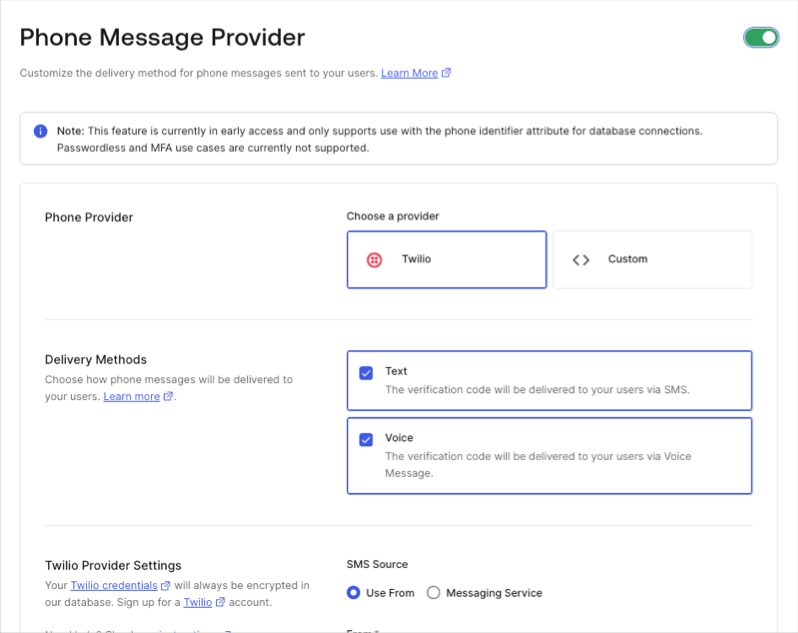 3. Select your phone message provider.
1. To use Twilio as your phone provider, follow [Configure Twilio as a Phone Messaging Provider](/docs/customize/phone-messages/configure-phone-messaging-providers/configure-twilio-as-a-phone-messaging-provider).
2. To use a custom provider, follow [Configure a Custom Phone Provider](/docs/customize/phone-messages/configure-phone-messaging-providers/configure-a-custom-phone-provider) to use Auth0 Actions.
4. Select your delivery method(s).
Desired MFA factors must be a subset of the delivery methods you configure at the tenant-level.
5. **Save** your changes.
6. Once complete, navigate to [Security > Multi-factor Auth](https://manage.auth0.com/#/security/mfa).
7. Select **Phone Message**.
8. Choose the authentication factors.
9. **Save** your changes.
## Configure Passwordless
You can use the Unified Phone Experience with a Passwordless SMS connection. To learn more about passwordless authentication with Auth0, read [Passwordless Connections](/docs/authenticate/passwordless).
1. In the Auth0 Dashboard, navigate to [**Branding > Phone Provider**](https://manage.auth0.com/#/phone/templates/phone/provider).
2. Enable the Phone Message Provider toggle.
3. Select your phone message provider.
1. To use Twilio as your phone provider, follow [Configure Twilio as a Phone Messaging Provider](/docs/customize/phone-messages/configure-phone-messaging-providers/configure-twilio-as-a-phone-messaging-provider).
2. To use a custom provider, follow follow [Configure a Custom Phone Provider](/docs/customize/phone-messages/configure-phone-messaging-providers/configure-a-custom-phone-provider) to use Auth0 Actions.
4. Select your delivery method.
If you do not select **Text** as a configured delivery method, your integration with Passwordless will not work.
5. **Save** your changes.
6. Once complete, navigate to [**Authentication > Passwordless > SMS**](https://manage.auth0.com/#/connections/passwordless).
7. **Save** your changes.
8. If you are using Twilio:
1. Navigate to [**Applications > Applications**](https://manage.auth0.com/#/applications).
2. Select the application(s) you want to use for your Twilio SMS connection for Passwordless.
3. Under **Connections**, enable the SMS (Twilio) option.
4. Return to [**Authentication > Passwordless > SMS**](https://manage.auth0.com/#/connections/passwordless).
5. Under the **Applications** tab, enable all applications you want to use for Passwordless SMS.
6. **Save** your changes.
If you have a use case in need of the legacy [MFA](/docs/secure/multi-factor-authentication/multi-factor-authentication-factors/configure-sms-voice-notifications-mfa) and [Passwordless](/docs/authenticate/passwordless/authentication-methods/use-sms-gateway-passwordless) experience, contact [Auth0 Support](/docs/troubleshoot/customer-support).
### Test your phone provider
Test the tenant-level provider before using it in a production environment:
1. Navigate to [**Branding > Phone Provider**](https://manage.auth0.com/#/phone/templates/phone/provider).
2. Select **Send Test Message** to test the tenant-level provider before using it in a production environment.
## Configure phone templates
The tenant-level phone provider uses [Liquid syntax](https://github.com/Shopify/liquid/wiki/Liquid-for-Designers) to inject contextual variables into your phone message content. To configure your phone templates, follow the instructions in [Customize Phone Templates](/docs/customize/phone-messages/phone-templates/customize).
## Disable phone provider
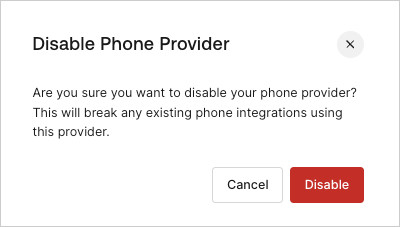
If you configure the Unified Phone Experience and then disable it, existing integrations with your phone provider could break, including your MFA phone factor.
3. Select your phone message provider.
1. To use Twilio as your phone provider, follow [Configure Twilio as a Phone Messaging Provider](/docs/customize/phone-messages/configure-phone-messaging-providers/configure-twilio-as-a-phone-messaging-provider).
2. To use a custom provider, follow [Configure a Custom Phone Provider](/docs/customize/phone-messages/configure-phone-messaging-providers/configure-a-custom-phone-provider) to use Auth0 Actions.
4. Select your delivery method(s).
Desired MFA factors must be a subset of the delivery methods you configure at the tenant-level.
5. **Save** your changes.
6. Once complete, navigate to [Security > Multi-factor Auth](https://manage.auth0.com/#/security/mfa).
7. Select **Phone Message**.
8. Choose the authentication factors.
9. **Save** your changes.
## Configure Passwordless
You can use the Unified Phone Experience with a Passwordless SMS connection. To learn more about passwordless authentication with Auth0, read [Passwordless Connections](/docs/authenticate/passwordless).
1. In the Auth0 Dashboard, navigate to [**Branding > Phone Provider**](https://manage.auth0.com/#/phone/templates/phone/provider).
2. Enable the Phone Message Provider toggle.
3. Select your phone message provider.
1. To use Twilio as your phone provider, follow [Configure Twilio as a Phone Messaging Provider](/docs/customize/phone-messages/configure-phone-messaging-providers/configure-twilio-as-a-phone-messaging-provider).
2. To use a custom provider, follow follow [Configure a Custom Phone Provider](/docs/customize/phone-messages/configure-phone-messaging-providers/configure-a-custom-phone-provider) to use Auth0 Actions.
4. Select your delivery method.
If you do not select **Text** as a configured delivery method, your integration with Passwordless will not work.
5. **Save** your changes.
6. Once complete, navigate to [**Authentication > Passwordless > SMS**](https://manage.auth0.com/#/connections/passwordless).
7. **Save** your changes.
8. If you are using Twilio:
1. Navigate to [**Applications > Applications**](https://manage.auth0.com/#/applications).
2. Select the application(s) you want to use for your Twilio SMS connection for Passwordless.
3. Under **Connections**, enable the SMS (Twilio) option.
4. Return to [**Authentication > Passwordless > SMS**](https://manage.auth0.com/#/connections/passwordless).
5. Under the **Applications** tab, enable all applications you want to use for Passwordless SMS.
6. **Save** your changes.
If you have a use case in need of the legacy [MFA](/docs/secure/multi-factor-authentication/multi-factor-authentication-factors/configure-sms-voice-notifications-mfa) and [Passwordless](/docs/authenticate/passwordless/authentication-methods/use-sms-gateway-passwordless) experience, contact [Auth0 Support](/docs/troubleshoot/customer-support).
### Test your phone provider
Test the tenant-level provider before using it in a production environment:
1. Navigate to [**Branding > Phone Provider**](https://manage.auth0.com/#/phone/templates/phone/provider).
2. Select **Send Test Message** to test the tenant-level provider before using it in a production environment.
## Configure phone templates
The tenant-level phone provider uses [Liquid syntax](https://github.com/Shopify/liquid/wiki/Liquid-for-Designers) to inject contextual variables into your phone message content. To configure your phone templates, follow the instructions in [Customize Phone Templates](/docs/customize/phone-messages/phone-templates/customize).
## Disable phone provider
If you configure the Unified Phone Experience and then disable it, existing integrations with your phone provider could break, including your MFA phone factor.